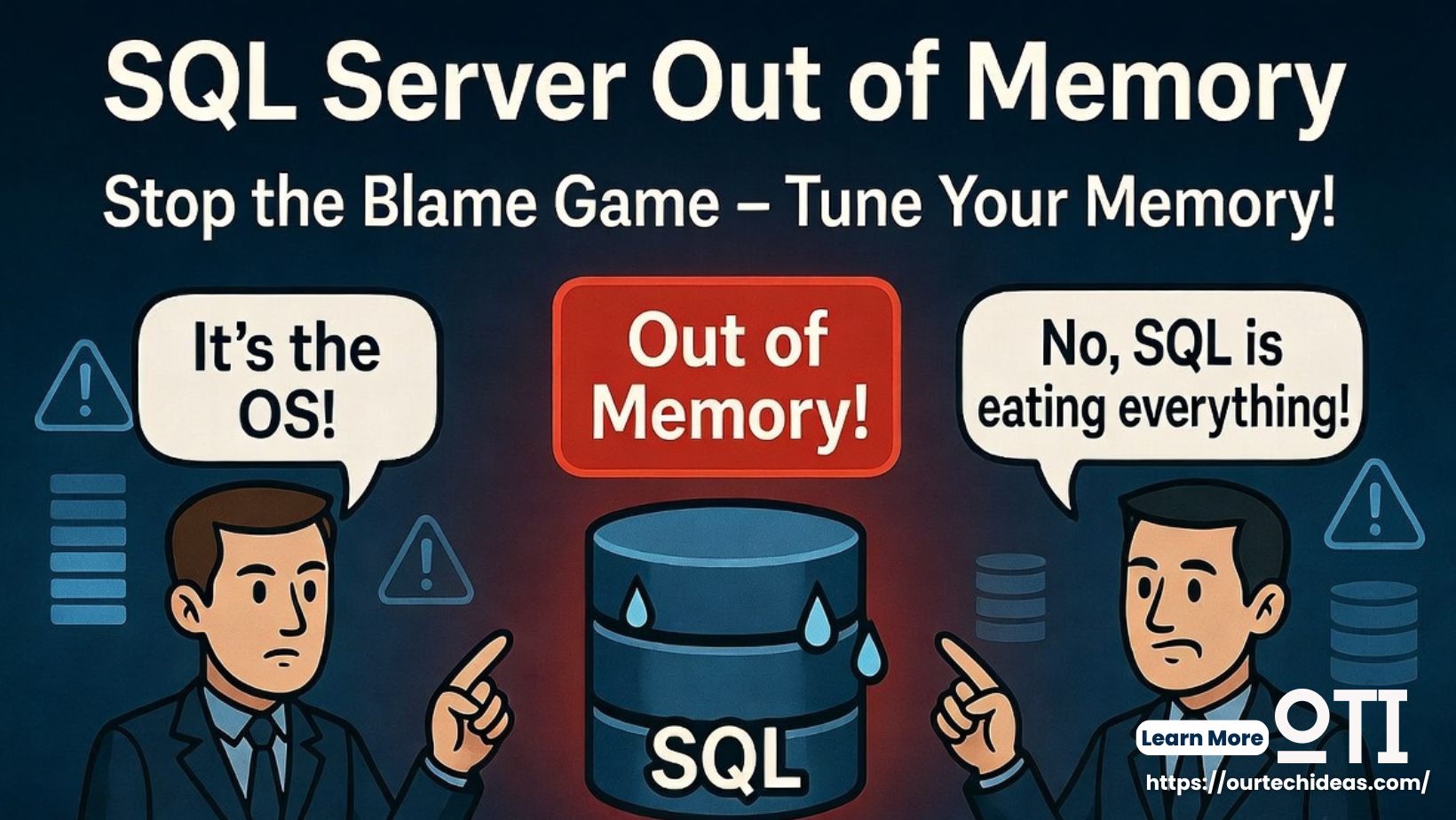
Ever walked into the office (or joined a late-night call) only to hear:
“SQL Server is out of memory again!”
Then the classic blame game begins:
- DBA: “It’s the OS! Not enough RAM allocated!”
- OS Team: “No way! SQL Server is eating up all the memory!”
- SQL Server: “I’m just using what you gave me…” 😅
Sound familiar?
Out of Memory (OOM) errors in SQL Server are one of the most common (and stressful) issues DBAs face. In 2026, with larger databases and heavier workloads, these problems haven’t gone away — they’ve just become more expensive when they occur.
In this post, we’ll break down why SQL Server runs out of memory, the real root causes, and exactly how to fix and prevent it.
Common Causes of SQL Server Out of Memory Errors
Here are the usual suspects when SQL Server hits OOM:
- Incorrect Max Server Memory Setting The most frequent culprit. Many DBAs leave max server memory at the default (which is basically unlimited). SQL Server then grabs as much RAM as it can, leaving almost nothing for the Operating System.
- Not Leaving Enough Memory for the OS On a dedicated SQL Server machine, you should typically leave 4–8 GB (or more for larger servers) for the OS, antivirus, monitoring tools, and other processes.
- Buffer Pool Consuming Everything SQL Server’s buffer pool (where data pages are cached) is greedy by design. When it grows too large, other memory clerks (like Query Workspace, CLR, or Thread Stack) can suffer.
- Heavy or Poorly Optimized Queries Queries with massive sorts, hash joins, or large result sets can request huge amounts of workspace memory, triggering OOM.
- Memory Leaks or Third-Party Tools Rarely, but possible — outdated drivers, linked servers, or poorly written extended stored procedures.
How to Properly Fix SQL Server Out of Memory Issues
Here’s a practical checklist you can follow today:
1. Set Proper Max Server Memory
Run this query to check current setting:
SQL
EXEC sp_configure 'show advanced options', 1;
RECONFIGURE;
EXEC sp_configure 'max server memory (MB)';Recommended Formula (for dedicated SQL Server):
- Total RAM – 4 GB to 8 GB (for OS) = Max Server Memory
Example: Server has 64 GB RAM → Set max server memory to 56,000 – 58,000 MB
2. Monitor Memory Usage Effectively
Use these DMVs regularly:
SQL
-- Check memory clerks
SELECT type, SUM(pages_kb)/1024 AS MB
FROM sys.dm_os_memory_clerks
GROUP BY type
ORDER BY MB DESC;

-- Buffer pool usage
SELECT COUNT(*) * 8 / 1024 AS Buffer_Pool_MB
FROM sys.dm_os_buffer_descriptors;3. Optimize Queries That Consume High Memory
- Add proper indexes
- Avoid SELECT * with large tables
- Break down complex queries
- Limit sorts and hash joins when possible
4. Enable Lock Pages in Memory (if needed)
For servers with high memory pressure, consider enabling “Lock Pages in Memory” for the SQL Server service account (but only after setting Max Server Memory correctly).
Final Lesson: Stop Blaming, Start Tuning
The next time SQL Server throws an Out of Memory error, don’t start the blame game.
Instead, check:
- Max Server Memory configuration
- Buffer pool vs OS memory balance
- Top memory-consuming queries
A well-tuned SQL Server should rarely hit true OOM if memory is configured correctly and queries are optimized.
Pro Tip for 2026: With Azure SQL Database and Managed Instance, many of these memory issues are handled automatically by Microsoft. If you’re still on on-prem, consider this as one more reason to plan your migration.
Have you faced a scary SQL Server OOM situation recently? What was the real cause — misconfigured Max Server Memory, bad queries, or something else?
Share your war stories in the comments below! 👇
I reply to every comment and love discussing real DBA challenges.


